How to Debug REST API Responses Like a Senior Dev
A practical workflow for debugging REST API responses: status codes, headers, body diffs, curl + jq, and how to catch silent regressions before they hit production.
The API returns a 200. The frontend breaks anyway. Or the data looks right at a glance but something downstream fails. Or you deploy a change and a field that used to be there is quietly gone.
Debugging REST API responses isn’t always about error codes. The hard bugs are the ones where the API technically works but the response body is subtly wrong — a changed field name, a missing nested key, a value that switched from a string to a number. These are the kinds of issues that a surface-level check misses entirely.
This post covers the full workflow for debugging REST API responses — from first principles to the tools that surface silent regressions before they become production incidents.
TL;DR: Paste two API responses (before and after a change) into GoGood.dev JSON Compare to instantly see every field that changed, was added, or was removed — no CLI setup needed.
Start with the basics: status, headers, body
Every API response has three parts. Debug them in order — don’t jump to the body until you’ve confirmed the first two are right.
1. Status code
The status code tells you the class of response before you read a single byte of the body:
2xx— success (200 OK, 201 Created, 204 No Content)3xx— redirect (follow it or investigate why)4xx— client error (bad request, unauthorised, not found — your problem)5xx— server error (the API is broken on its end)
A common trap: treating any 200 as success. Some APIs return 200 with an error payload:
{
  "status": "error",
  "message": "User not found"
}
Always check the body, not just the code.
2. Response headers
Headers carry metadata that affects how you interpret the body:
Content-Type: application/json— confirm the body is actually JSONContent-Type: text/html— you’re getting an HTML error page, not JSONX-RateLimit-Remaining: 0— you’ve been rate-limited; the body may be a limit messageCache-Control/Age— you may be seeing a cached response, not the live one
3. Response body
Only once status and headers look right should you dig into the body — and the body is where most of the interesting bugs live.
The curl + jq debugging workflow
curl is the fastest way to make a raw HTTP request with full visibility. Combine it with jq for readable output.
Basic request with headers:
curl -s -i https://api.example.com/users/usr_a1b2c3 \
  -H "Authorization: Bearer $TOKEN"
The -s flag suppresses the progress bar; -i includes response headers in the output.
Pretty-print the JSON body:
curl -s https://api.example.com/users/usr_a1b2c3 \
  -H "Authorization: Bearer $TOKEN" \
  | jq .
Extract a specific field:
curl -s https://api.example.com/users/usr_a1b2c3 \
  -H "Authorization: Bearer $TOKEN" \
  | jq '.role'
Save to a file for comparison later:
curl -s https://api.example.com/users/usr_a1b2c3 \
  -H "Authorization: Bearer $TOKEN" \
  | jq . > response-before.json
This is the foundation of regression testing: save the response before a change, deploy, save again after, then diff them.
Comparing responses to catch regressions
The most valuable debugging technique is comparing the response body before and after a change. This immediately surfaces regressions — fields that disappeared, values that changed type, new fields added unexpectedly.
The manual diff workflow:
# Before deploy
curl -s "$API/users/usr_a1b2c3" -H "Authorization: Bearer $TOKEN" \
  | jq --sort-keys . > before.json

# After deploy
curl -s "$API/users/usr_a1b2c3" -H "Authorization: Bearer $TOKEN" \
  | jq --sort-keys . > after.json

# Compare
diff before.json after.json
--sort-keys normalises key order so you only see semantic changes, not formatting noise.
For a visual diff, paste both responses into GoGood.dev JSON Compare. It gives you a side-by-side view with every change highlighted:
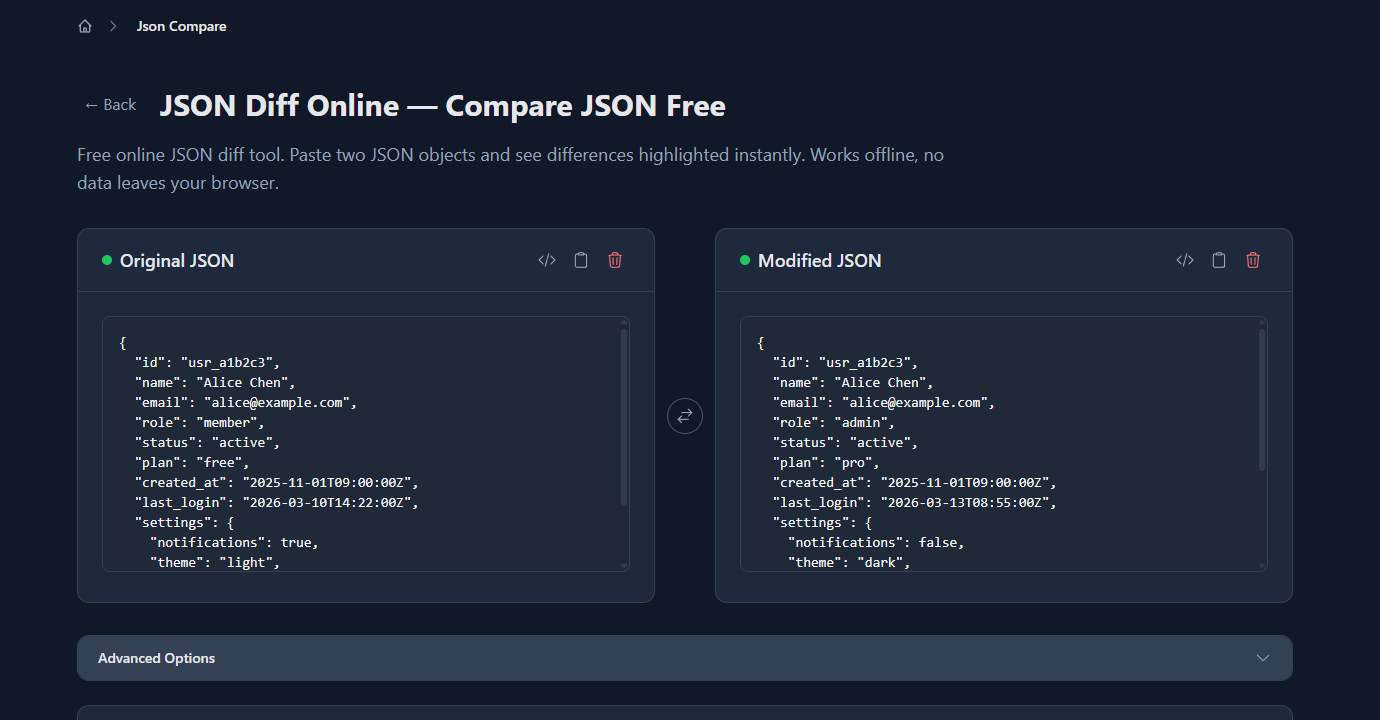
In the example above: the same /users/:id endpoint before and after a deploy. The tool picked up 6 changed fields and 1 added field in under a second.
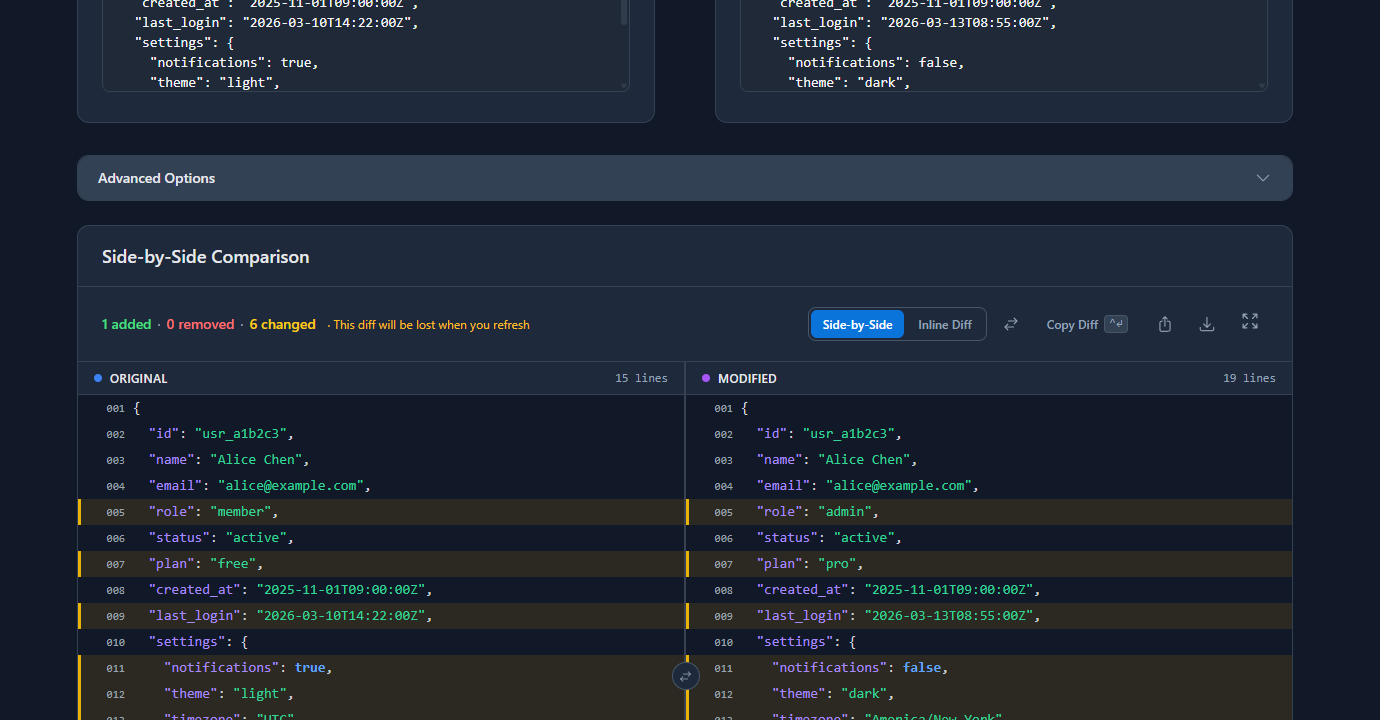
The yellow rows show what changed: role went from member to admin, plan from free to pro, settings were updated. The green rows show what was added: a billing object that wasn’t in the previous response. That’s the kind of change that could silently break a frontend that didn’t account for the new field.
Debugging specific problem categories
Silent field renames
An API changes user_id to userId (snake_case to camelCase). Your frontend stops working but no errors are thrown — the field just comes back as undefined. This is one of the hardest bugs to spot manually.
A structural diff catches it immediately: one side shows user_id: "usr_a1b2c3" removed, the other shows userId: "usr_a1b2c3" added.
Type changes
"count": "42" (string) becomes "count": 42 (number). Loose comparison (==) hides it; strict comparison (===) breaks. A semantic JSON diff flags type changes because the values aren’t equal even though they look the same.
Nested object changes
A change deep in a nested structure — settings.notifications.email — is easy to miss in a raw text diff if the surrounding lines are unchanged. A structural diff shows the exact path to the changed value.
Array item reordering
A list of permissions comes back in a different order after a query optimisation. Functionally identical, but a text diff flags every element. The “Ignore Array Order” option in JSON Compare removes this noise.
Adding API response assertions to CI
Once you’ve manually verified what a response should look like, automate it. Save the expected response as a fixture and diff against it in your pipeline:
#!/bin/bash
# ci-api-check.sh

curl -s "$STAGING_API/users/usr_test" \
  -H "Authorization: Bearer $CI_TOKEN" \
  | jq --sort-keys . > actual.json

diff <(jq --sort-keys . expected.json) actual.json > changes.txt

if [ -s changes.txt ]; then
  echo "❌ API response changed:"
  cat changes.txt
  exit 1
fi

echo "✅ API response matches expected"
This runs on every deploy and fails the build if the response shape changes unexpectedly. It’s a lightweight contract test that requires no test framework.
For more advanced contract testing, tools like Pact or Dredd formalise this pattern, but the curl + jq + diff approach is often good enough and has zero dependencies.
Common REST API debugging mistakes
Only checking the happy path
Most API bugs live in edge cases: what does the endpoint return for a user with no orders? A deleted resource? An expired token? Test these explicitly — don’t assume the happy path covers everything.
Ignoring the Content-Type header
If Content-Type isn’t application/json, your JSON parser will fail — but the error message won’t tell you why. Always log or inspect headers when a parse error occurs unexpectedly.
Comparing responses manually at scale
Eyeballing two 200-line JSON objects for differences doesn’t work. You will miss something. Use a diff tool — either jq + diff on the command line or a visual tool for ad hoc comparisons.
Not saving the “before” state
When debugging a regression, you need both the before and after response. If you didn’t save the before state, you’re reconstructing it from memory or logs — slow and error-prone. Build a habit of capturing responses before deploying changes.
FAQ
What’s the fastest way to debug a REST API response?
curl -s URL | jq . gets you a pretty-printed, readable body in one command. Add -i for headers. For visual comparison of two responses, paste both into gogood.dev/json-compare — no setup required.
How do I debug an API that returns HTML instead of JSON?
Check the Content-Type response header. If it’s text/html, the server returned an error page instead of JSON — often a 401, 403, or 500 that the server formats as HTML. Add Accept: application/json to your request header to tell the server you want JSON back.
How do I compare API responses across environments (staging vs production)?
Capture both with curl -s | jq --sort-keys . > file.json, then diff the files. Or paste both responses into the online JSON Compare tool for a visual side-by-side view. The key is --sort-keys to eliminate key-ordering noise.
How do I find what field changed between two API versions?
A structural diff is the right tool — it shows exact field paths like settings.theme: "light" → "dark". Either diff <(jq --sort-keys . v1.json) <(jq --sort-keys . v2.json) or paste both into a JSON diff tool.
My API returns a 200 but the data is wrong — where do I start?
First, print the full raw response body — don’t rely on what your HTTP client or frontend parses. Then check if the issue is in the response body itself (wrong data from the API) or in how your code processes it (parsing bug on your side). Capturing the raw response with curl and inspecting it with jq isolates which layer the problem is in.
Debugging REST API responses is mostly a workflow problem — having the right tools at each layer and the habit of comparing before/after states rather than inspecting in isolation. Once you have saved responses to diff against, most regression bugs become immediately obvious.
Related reading: Comparing API Responses: Before and After a Deploy goes deeper on the deploy comparison workflow, and Why Your JSON Diff Tool Gives False Positives explains how to avoid noise from formatting differences when diffing responses.